- Add a new form to your project.
- Make this form look like your dialog.
- Program this form with any code it needs.
- Link your main form and your dialog.
Task 1 :: Adding a new form
In this task we will add a new form for a find dialog.
- Take a close look at the following screen shot. This is the dialog we will be creating.
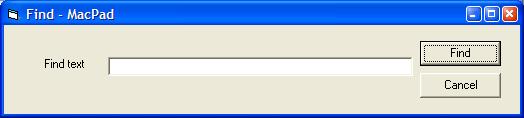
- In your text editor project, in the VB IDE click "Project->Add Form". Choose to add a "Form".
- Add controls to this form to make it look like the dialog above. If you wish to match the example program you should give your controls the following properties:
text box :  name = txtFind
            text = ""

label :     name = lblFind
            caption = "Find Text"

command button :  name = cmdFind
                  caption = "Find"

command button :  name = cmdCancel
                  caption = "Cancel"
You can see full details of the controls from the printout.
Task 2 :: Programming the new form
There are a number of things to take note of in this code.
In this task we will add code to our dialog to give it searching capabilities.
- Add the following code to the code window of the new dialog.
Option Explicit

' Need a variable that keeps track of where to
' start the next search
Public startPos As Integer
Public currentSearch As String

Private Sub cmdCancel_Click()
    Unload Me
    Me.Hide
End Sub

Private Sub cmdFind_Click()
' When the find button is clicked, we wish to jump to the
' next instance of the current string in the text

    ' get a local variable that is the search string
    Dim lookingFor As String
    lookingFor = txtFind.Text

    ' Variable to keep track of where this string is
    Dim pos As Integer
    pos = 0

    pos = InStr(startPos, frmMain!txtDocument.Text, lookingFor)

    If pos = 0 Then
        MsgBox "String not found"
    Else
        With frmMain!txtDocument
            .SelStart = pos - 1
            .SelLength = Len(lookingFor)
        End With
    End If

    ' set up for find next in case it is used
    startPos = pos + Len(lookingFor)
    currentSearch = lookingFor

    ' close down the form
    cmdCancel_Click
End Sub

Private Sub Form_Load()
    ' got to set this initially
    startPos = 1
End Sub

Public Sub findNext()
' This is a function that will find the next incident of
' the last string searched for
    Dim pos As Integer
    pos = InStr(startPos, frmMain!txtDocument.Text, currentSearch)

    If pos = 0 Then
        MsgBox "String not found"
        startPos = 1
    Else
        With frmMain!txtDocument
            .SelStart = pos - 1
            .SelLength = Len(currentSearch)
        End With
    End If

    ' set up for find next in case it is used
    startPos = pos + 1
End Sub
- We are using the "!" notation to access things on another form
- We are using a special string function InStr which will return the position within one string of some other string.
- Unload Me and Me.Hide are the two lines which close a dialog when we are finished with it
- The With notation is used as a shortcut. This allows us to save keystrokes by not having to repetitively type the object we are dealing with when we want to do a number of consecutive things to the same object. The following two code segments will do the same thing
frmMain!txtDocument.Text = "some text"
frmMain!txtDocument.SelStart = 5
frmMain!txtDocument.Length = 12
frmMain!txtDocument.Name = "some text"
With frmMain!txtDocument
	.Text = "some text"
	.SelStart = 5
	.Length = 12
	.Name = "some text"
End With
- We are using a number of new properties, you can look these up in the object browser. SelStart and SelEnd specify the start and length respectively of the selection in the text box. A selection is a part of the string that is highlighted.
Task 2 :: Connecting the new form
We have to connect the two forms now. We must connect in both directions, from the main form to the dialog and from the dialog to the main form. Half of our connection has been made already, the dialog directly effects the main form by accessing it with the "!" notation. The connection from the main form to the dialog is simple. All we must do is add code to invoke the dialog. This will be in the form of two menu options (find and find next) which invoke functionality we have already built into the find dialog.
- Add two new menu items ("Find" and "Find Next") under a new heading "Search". To make a menu into a heading, use the left arrow next to the right arrow that we used in Exercise 6 Task 1. It does the exact opposite.
- Add the following code to the event for the "Find" menu item.
frmFind.Show
The Show method will make a form visible. - Add the following code to the event for the "Find Next" menu item.
frmFind.findNext
Notice that we don't use the "!" notation to access the findNext procedure that we added (it is not connected to any event) to the find dialog. This notation is reserved for controls on the form. For accessing procedure, we can just use the simple . notation.