Exercise 3 :: Working with controls
Procedures
A procedure is a block of programming code. VB has sub procedures and function procedures. At this point we deal only with sub procedures. All sub procedures begin with Private Sub and end with End Sub
Event Procedures
Controls are not much good on their own. To make use of them we must program their events. This is the point at which VB gets really helpful. In VB, each of the controls you add to your interface have a huge number of events already associated with them. Furthermore, each of them is a separate procedure that you can program. When the corresponding event occurs, the code in that procedure will run. If we have a form that contains a command button, there will be a "click" event associated with that button. VB will automatically generate the procedure "commandbutton_Click()" which we can program. Whatever code we place in this procedure will be run whenever that particular command button is clicked on.
Task 1 :: Programming controls
We will create our first full VB program by creating a form, adding controls to it and then programming the controls. We will create a simple calculator program that calculates the area of a room after the user provides the width and the length. For this task, we will create a new project (do not use the project you have been working on to this point). If you have forgotten how to create a new project, review Exercise 1/Task 1.
- Create a new project.
- Change the name of the project and the form (in the properties pane) to "RoomCalc".
- Save the project and give everything the name "RoomCalc"
- Make your interface look like this:
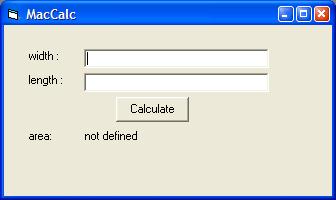
by adding;
- four labels,
- name = lblWidth
- caption="width :"
- name = lblLength
- caption="length :"
- name = lblWidth
- caption="area"
- name = lblAnswer
- caption="not defined"
- two text boxes,
- one command button.
- name = cmdCalc
- text="Calculate"
- Double click on the command button. This will bring up the code window for the routine "cmdCalc_Click()".
- Add the following code to this procedure:
Private Sub cmdCalc_Click()
    ' Declare the required variables
    Dim w As Double
    Dim l As Double
    Dim area As Double

    ' Get the user input into local
    ' variables
    w = Val(txtWidth.Text)
    l = Val(txtLength.Text)

    ' Calculate the area
    area = w * l

    ' Show answer in label
    lblAnswer.Caption = Str(area)
End Sub
- Save the project.
- Run your program by hitting the run button. Add two numbers to the width and length fields and then press the "Calculate" button.
- (Optional/Advanced) Choose your own names for the controls. Then re-write the code to work with the new names you have chosen.
Understanding the code
Congratulations on your first real VB program! Now we need to understand what we just did. Once the "calculate" button is clicked by the user (in the running program), the "cmdCalc_Click()" procedure will automatically be run. This specifies how to do the calculation and display the result. Lets have a look at the code in detail to see what each section does.
Comments
Comments are code segments that are not executed. They exist to make reading the code easier. In VB, comments begin with a comma and finish at the end of that line. The following are two lines of comments from the above code. If you view your code in the VB IDE, you will notice that comments are coloured green to make them stand out from the rest of your code.
    ' Get the user input into local
    ' variables
Variables
Variables are names that we can give to values that we want to store (so we can use again later). The value can be anything that the programming language knows about (numbers, characters, etc). In VB, variables are declared with a "Dim" statement. The following three lines define w, l and area to be of type double.
    Dim w As Double
    Dim l As Double
    Dim area As Double
You can think of the line Dim w as Double to mean "Set up the variable w so it can hold Doubles".
In VB you have the following types available
- Boolean - True of False only
- Byte - One byte of data, you will not need to use this for this workshop
- Currency - Any data that represents an amount of money
- Date - Any data that represents a date
- Double - A high precision floating point number
- Integer - An integer
- Long - An integer (can go to larger numbers than Integer)
- Single - A low precision floating point number
- String - A segment of text (e.g. "this is a string")
- Variant - This is a special VB data type that can store data of any type at all. Use this one if you cannot tell before hand what type of data will reside in this variable. It is poor programming practice to over-use the Variant data type, so reserve it for the times it is strictly necessary.
In VB, it is not necessary to declare variables before using them (i.e. you could have left out all the Dim statements). However, it is considered good practice to declare variables and I highly recommend that you always declare variables before using them.
Objects
If you recall from earlier, I said that many things in VB are organised into objects with properties and methods. All of the controls we have seen to this point have been objects. We call the methods and properties of an object its members. We have been modifying their properties in the properties pane and the "cmdCalc_Click()" procedure is an example of a method of one of these objects. In the code here, we can see the object model operating in code. When we refer to an object in code, we use its name (eg. txtWidth and txtLength). However, we actually want to work with some of the properties of this object (in this case we wanted to know what was the "Text" property). To access the members of an object you follow the name by a period and then write the name of that property or procedure. Notice that the event procedure "cmdCalc_Click()" follows a different convention (the period is replaced with an underscore).
Special Functions
VB provides a number of special functions for use in coding. In this code we have used the String functions Val and Str. Val will convert a string that actually contains a number, to its corresponding representation as a number. In our example in converted the string to a Double. Str is the exact opposite. We will see the use of other built-in functions later.
Task 2 :: Making use of variables
We modify the calculator example to make better use of Variables. If you run your first calculator program with text where numbers should be, it will give zero. In this example we ensure that the user input is appropriate for the calculation we wish to perform and display error messages if the user tries to input something that is not a number. In this way we are making our program more robust to the various possible user inputs.
- Use the same project that you created in Task 1.
- View the code for cmdCalc_Click(). You can do this by double clicking on the button in the form editor in VB.
- Change the code for this procedure to the following:
Private Sub cmdCalc_Click()
    ' Declare the required variables
    Dim w As Double
    Dim l As Double
    Dim area As Double

    ' Get the user input into local
    ' variables
    w = Val(txtWidth.Text)
    l = Val(txtLength.Text)

    ' Check that the input is valid
    If (w = 0) Then
        If (l = 0) Then
            MsgBox ("Both your inputs are invalid")
        Else
            MsgBox ("Your width is invalid")
        End If
    Else
        If (l = 0) Then
            MsgBox ("Your length is invalid")
        End If
    End If

    ' Calculate the area
    area = w * l

    ' Show answer in label
    lblAnswer.Caption = Str(area)

End Sub
- Run your program
- Try some invalid inputs and see what happens.
New Ideas
You will notice that this code is almost the same as the previous, but with a new block of code. You will notice some new things in this code that we have not seen before.
' Check that the input is valid
If (w = 0) Then
    If (l = 0) Then
        MsgBox ("Both your inputs are invalid")
    Else
        MsgBox ("Your width is invalid")
    End If
Else
    If (l = 0) Then
        MsgBox ("Your length is invalid")
    End If
End If
If statements
An "If" statement is a way to split execution. The code will follow just one of the available branches depending on the truth or otherwise of the conditions. If statements in VB follow the following pattern:
If "condition" Then
  "Do one thing"
Else
  "Do some other thing"
End If
The sections in inverted commas are those parts you must specify, the rest is the general pattern. If the condition comes up true, then the first statement will be executed. If false, then the second is executed. We have nested If statements in the above example, which makes it possible to generate more than two branches.
Message Boxes
Visual Basic provides message boxes that are very easy to use and which can be great for providing information to the user. Message Boxes can be invoked with the special built in function MsgBox. This function is given one parameter that specifies the message for the box. You can see how message boxes operate by putting some invalid input into your improved calculator program.
More Events
As I stated, there are a great number of events associated with each control. How do we access the procedures that correspond to these events?
Task 3 :: More Events
We add more code to the command button that is run whenever the user moves the mouse over the command button
Ensure you have the calculator project open.
View the code for the command button.
At the top of this window, you will see two drop down boxes
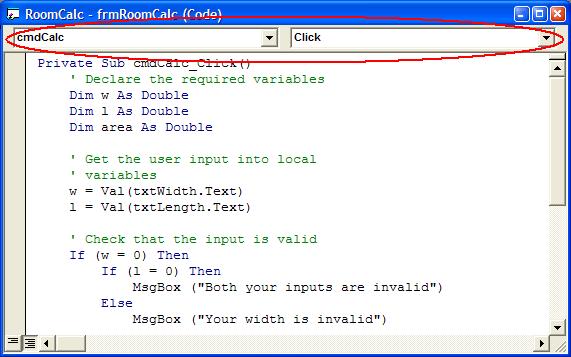
The left list (object list) has all the available objects. The right list (event list) has he events available for the object selected in the left list.
Click the object list. You will see entries for every control you have in your form, plus the form itself, and the entry "(General)". General is where global functions and variables can be defined.
Select cmdCalc in the object list.
Click on the event list, notice the huge number of events available
Select "MouseMove" from the event list
You will now have new (empty) procedure called "cmdCalc_MouseMove(...)". This procedure has a number of parameters that we need not worry about.
Fill this procedure with the following code:
If frmRoomCalc.BackColor = vbRed Then
    frmRoomCalc.BackColor = vbGreen
Else
    frmRoomCalc.BackColor = vbRed
End If
Run your program. Move the mouse slowly over the command button to see the effects of the new code.
Save this project.
What is going on?
Every time you move your mouse over the command button, its "MouseMove" procedure is being run. This is the code we added and it simply swaps the colour from red to green every time it is called.
NEXT ->
Matthew Roberts, Macquarie University 2002